¶ 1. Create a new project (or use an existing one)
From the Select Model screen, create a new project by New, select Project : New Project..., and specify a new Name
¶ 2. Create a new Model
From the Select Model screen, create a new model by New, select the previous Project, and specify a new model Name
The new model will appear in the Projects list (the default view) on the left hand side of the screen under the desired Project
Open the new model by double clicking the model in the list, this will present you with an empty process screen on the the right, with a list of component categories on the left
¶ 3. Create a initial basic model
By expanding categories and dragging components from left hand side, place them on the process canvas (then main part of the screen)
Left clicking on a component on the process canvas, and selecting Connect to, then clicking on the destination component, components are connected in a flow, it is convention to create a flow from left to right, but this is optional
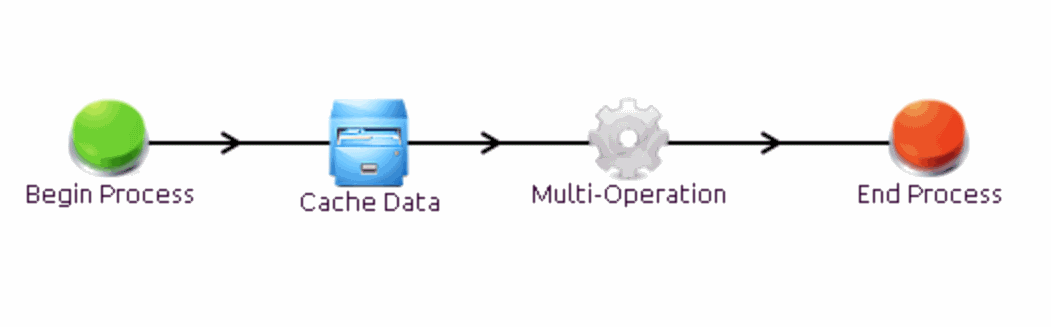
By the above mechanism create the following flow, using (in order)
- Input-Output - Begin Process
- Build Tools - Cache Data (makes building models easier)
- Processing - Multi-Operation
- Input-Output - End Process
The should result in the following: