¶ Segment a data file into elements for further processing…
For example, say you have a JSON data structure in a file, which you wish to break down into individual records for loading into a database:
- Create the file reader
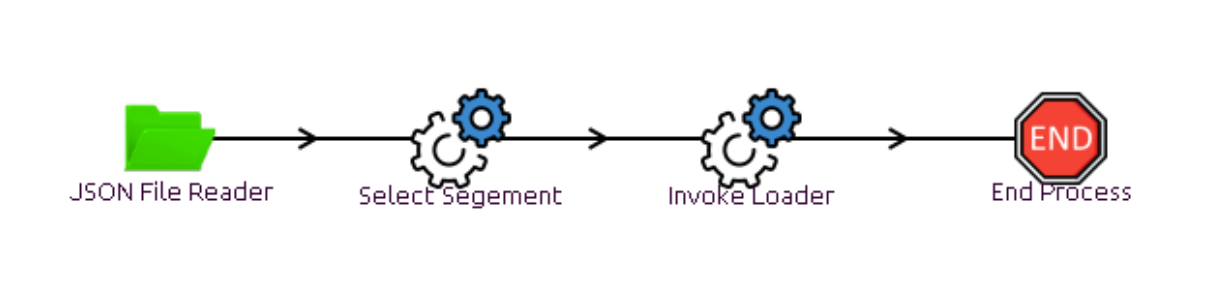
- Add a processing node to select the segments
- Add a processing node to pass the data to a second model for adding to a data source (e.g. Database)
- Create the second model
Each of these is covered in more detail below:
¶ Create the reader for the data
In our example this reads a JSON file from the users disk (using a JSON file reader), however the source could also be a CSV file (CSV file reader), a database (various readers available), or a REST interface (inbound) node.
Load the required file:
- From the model view, upload the file to the users root or directory.
For the JSON example:
- Drag and drop the JSON File Reader (in the node palette under File Operations) onto the model canvas.
- Within the JSON file Reader, within the Properties tab, set the location (directory) and filename for the file uploaded.
- You should be able to see the file data by selecting
¶ Add Processing Node to select top level segments
Create a model of the form:
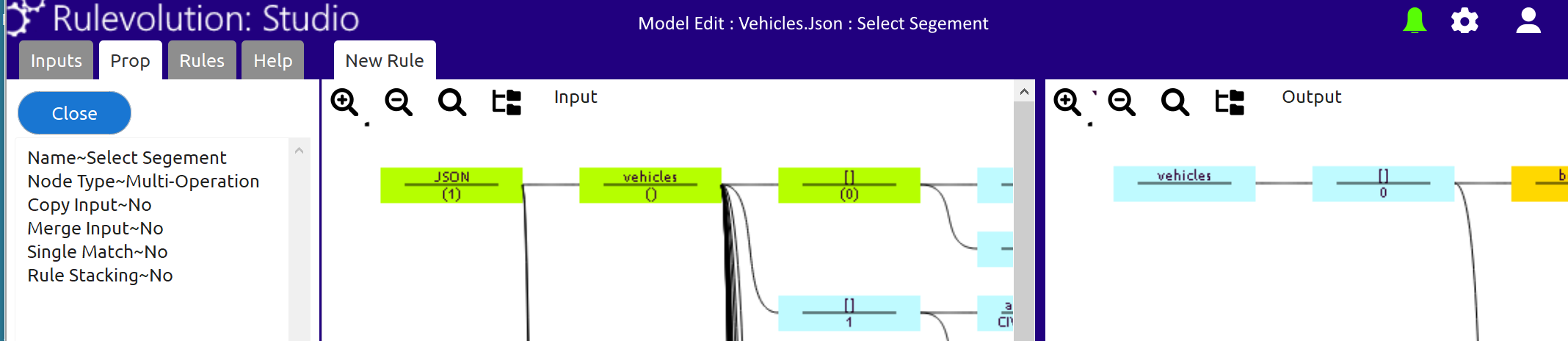
Within the Select Segment:
- Drag to the Output window the root and children of one of the segments (holding the Ctrl when dropped will copy all the children (in the output window, the yellow are the copied nodes, which cannot be used for further behaviour within this node)
- Select the source items in the Input window
- Set the Single Match flag to No (each match will create another data scenario for the next node)
¶ Add Processing Node to pass data to second model
In the second processing node:
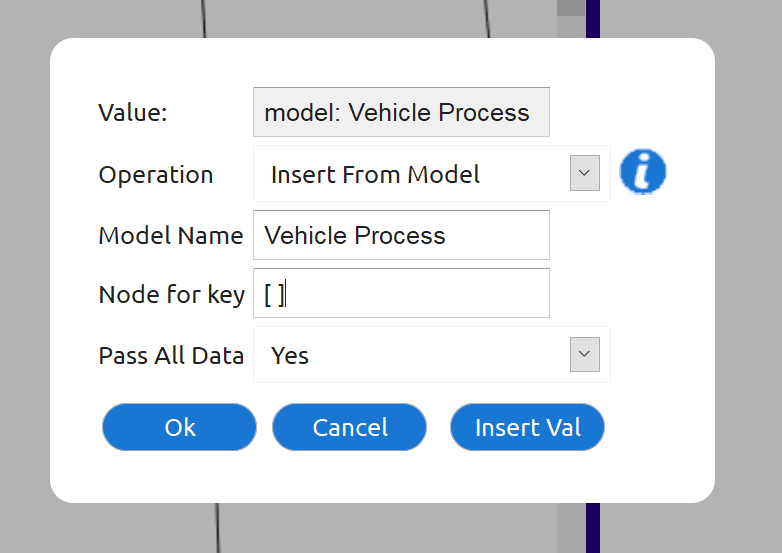
- Add a node, add a Name, edit the value as follows (Operation of Insert From Model)
- The Model Name should be set for the Second Model (added at the next stage)
- Node for key should be set as the name of the root segment of the data within in the Input
- Pass All Data, set this to Yes, this will pass all the data from the Input (not just the selected data, latter may be useful if required)
Remember to select a generic match and add the rule
¶ Create second model
The second model will receive each segment in turn, each element can then be broken down to smaller sections and written to a database or similar.
When storing data see also the topics of DataTables and Data Sources.